Configure Bluetooth Audio on Raspberry Pi OS Lite with PipeWire
- Published
- Author
- peppe8o
- Reads
- 496
PipeWire, WirePlumber and BlueZ can run Bluetooth audio headlessly; the key is disabling seat monitoring and enabling user services to persist.
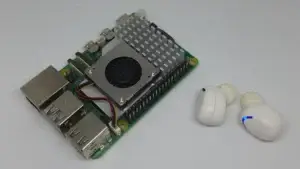
Bluetooth audio on Raspberry Pi OS Lite depends on more than pairing a headset. On a headless system, WirePlumber may wait for a desktop session before enabling Bluetooth audio, so a device can pair successfully yet fail to connect. The tested setup described here uses PipeWire, WirePlumber and BlueZ, with a small WirePlumber configuration change to remove that headless-session obstacle.
The configuration was tested on a Raspberry Pi 5B with 2GB of memory, Raspberry Pi OS 13 (Trixie), PipeWire 1.4.2, WirePlumber 0.5.8 and Bluetoothctl 5.82. The same general approach applies to Raspberry Pi models with onboard Bluetooth, including the Pi 4 and Zero 2 W, although device profiles and names can vary.
How the audio path fits together
BlueZ handles Bluetooth communication. PipeWire provides the multimedia server, while pipewire-pulse supplies the PulseAudio interface that many Linux audio applications expect. WirePlumber manages the session and decides how devices are exposed and routed. Audio then reaches the hardware through ALSA.
That division matters when troubleshooting. BlueZ can discover and pair a headset while the audio session manager fails to make its Bluetooth profiles available. In the tested headless setup, disabling WirePlumber’s seat monitoring was the needed change. PipeWire and its PulseAudio compatibility service can then route playback without a desktop environment.
The setup also keeps audio processing load low in the reported test. Over roughly 60 seconds of tone playback on the Pi 5B, the combined CPU time for WirePlumber and pipewire-pulse was 0.274 seconds with A2DP and 0.288 seconds with the headset profile. Those totals correspond to about 0.46% and 0.48% of one core, respectively. The headset profile’s trade-off was audio quality and channel format, rather than a meaningful change in measured CPU use.
| Profile | Format reported in the test | WirePlumber CPU time | pipewire-pulse CPU time | Total |
|---|---|---|---|---|
| A2DP | SBC, stereo 48 kHz | 0.220 s | 0.054 s | 0.274 s (~0.46% of one core) |
| Headset | mSBC, mono 16 kHz | 0.227 s | 0.061 s | 0.288 s (~0.48% of one core) |
The measurements are averages of three runs per profile. They describe one Raspberry Pi 5B, OS installation and Bluetooth device, so they are useful as a reference rather than a performance guarantee for every headset or board.

Prepare the Lite installation
The hardware list is short: a Raspberry Pi board with Bluetooth, a suitable power supply, a microSD card and Bluetooth headphones or a speaker. The tested guide recommends a card of at least 16 GB and Class 10 or faster. For power, it mentions a proper Pi supply or a micro USB charger rated at least 3A for boards that use that connector.
Install Raspberry Pi OS Lite and bring the package lists and installed software up to date:
sudo apt update -y && sudo apt full-upgrade -yInstall the audio, Bluetooth and command-line utility packages:
sudo apt install pipewire pipewire-pulse wireplumber libspa-0.2-bluetooth bluez pulseaudio-utils -yOn the tested Pi 5, this installation downloaded 14.5 MB and used 41.5 MB of storage. Package size can vary with the OS image and repository state.
Start the user sockets for PipeWire and its PulseAudio interface:

systemctl --user start pipewire.socket pipewire-pulse.socketThen inspect the user services:
systemctl --user status pipewire pipewire-pulse wireplumber --no-pagerThe expected result is that PipeWire, PipeWire Pulse and WirePlumber are active. A log entry about a missing libcamera SPA plugin appeared in the tested system; that warning concerns camera support and does not by itself show that Bluetooth audio has failed.
BlueZ runs as a system service. Check its status separately:
sudo systemctl status bluetoothIt should be active and running. The tested system reported Bluetooth daemon 5.82. To check that PulseAudio-compatible clients can reach PipeWire, run:
pactl infoIn the example installation, the server identified itself as “PulseAudio (on PipeWire 1.4.2),” with a 48 kHz stereo default sample specification. The server name confirms that the PulseAudio client interface is being provided by PipeWire; it does not mean the older PulseAudio server is handling the audio.

Allow WirePlumber to manage Bluetooth without a desktop
A desktop session normally provides the seat context that WirePlumber monitors. On a Lite installation accessed through SSH, that session may not exist. The reported symptom was a connection failure containing org.bluez.Error.Failed br-connection-profile-unavailable.
Create a WirePlumber configuration directory and add an override that disables Bluetooth seat monitoring:
mkdir -p ~/.config/wireplumber/wireplumber.conf.d
cat > ~/.config/wireplumber/wireplumber.conf.d/80-disable-seat-monitoring.conf <<'EOF'
wireplumber.profiles = {
  main = {
    monitor.bluez.seat-monitoring = disabled
  }
}
EOF
Apply the change by restarting WirePlumber:
systemctl --user restart wireplumberCheck that Bluetooth audio roles are visible with:
bluetoothctl show | grep -i -E "audio|handsfree|headset"The tested controller listed Handsfree Audio Gateway, Audio Source, Audio Sink and Handsfree UUIDs. Seeing audio-related UUIDs is a useful sign that the Bluetooth controller and service are exposing audio roles, though the connected headset still needs to be paired and its profile made available.

Discover, pair and connect the audio device
Open the Bluetooth command-line tool as the regular user:
bluetoothctlAt its prompt, use show to inspect the controller. Confirm that Powered: yes appears. In the tested output, the controller was also pairable. If the audio device requires it, place it in pairing mode according to its own instructions.
Start discovery:
scan onBluetoothctl will print nearby devices as they appear. The output can keep changing, so allow at least several seconds for discovery and identify the device by both its advertised name and address. The example headset appeared under the generic name “TWS,” short for True Wireless Stereo, at address B7:6A:D4:38:C8:7A. Your address will be different.
Use the address shown by your scan for the following commands. Pair the device:

pair B7:6A:D4:38:C8:7AA successful pairing reports that the device is bonded and paired. It may then disconnect immediately; in the test output, pairing completed and the connection dropped before the next command. That does not undo the pairing.
Mark the device as trusted so it can reconnect without repeating the pairing process:
trust B7:6A:D4:38:C8:7AThen establish the connection:
connect B7:6A:D4:38:C8:7AA successful connection reports Connected: yes and creates Bluetooth audio endpoints and a transport. The sequence is significant: pairing records the relationship, trust permits later automatic connection, and connect establishes the current session.
Select the output and adjust its profile
List the audio cards visible to the PulseAudio interface:

pactl list short cardsOn the tested Pi 5, two entries represented the HDMI outputs and a third represented the Bluetooth headset, named bluez_card.B7_6A_D4_38_C8_7A. Bluetoothctl displays the address with colons, while the PipeWire card name replaces those colons with underscores.
Set the Bluetooth output as the default sink. In the reported setup, the sink name ended in .1:
pactl set-default-sink bluez_output.B7_6A_D4_38_C8_7A.1Sink identifiers depend on the device and available profiles. Use the names shown by your own system if they differ. Set the selected sink’s volume, for example to 80%, with:
pactl set-sink-volume bluez_output.B7_6A_D4_38_C8_7A.1 80%Bluetooth headsets may expose more than one audio profile. Inspect the card’s supported profiles with:
pactl list cards | awk -v RS='' '/bluez_card/'The tested earbuds offered an A2DP playback profile using SBC, an A2DP profile using SBC-XQ, and two headset profiles: one using CVSD and one using mSBC. A2DP provided stereo playback at SBC in the CPU test. The headset profile exposed both a sink and a source, enabling microphone input, but the reported mSBC mode was mono at 16 kHz. Profile availability and codec names depend on the Bluetooth device.

To choose a profile, use the card name from your own output and one of its listed profile names:
pactl set-card-profile bluez_card.B7_6A_D4_38_C8_7A headset-head-unitFor music playback, an A2DP profile is generally the relevant option among those shown by the tested device. A headset profile is needed when the microphone is in use, with the trade-off in the example being lower-fidelity mono audio. Check the active profile after switching rather than assuming the requested profile was accepted.
Keep user audio services available after reboot
User services normally depend on a login session. A headless Raspberry Pi may need them to run before anyone logs in, so enable lingering for the current user:
sudo loginctl enable-linger "$USER"Verify the setting:
loginctl show-user "$USER" | grep LingerThe expected line is Linger=yes. Together with the PipeWire sockets and trusted Bluetooth device, lingering lets the user audio services start without a desktop login. The original test also found that starting the sockets persisted through a reboot; checking the service status after restarting the Pi remains a practical way to confirm the setup on a particular installation.
Test playback and microphone input
A short stereo WAV tone can check the output path without needing a music file. This command creates a three-second, 440 Hz tone at 48 kHz:
python3 -c "
import wave, struct, math
w = wave.open('/tmp/test.wav', 'w')
w.setnchannels(2); w.setsampwidth(2); w.setframerate(48000)
for i in range(48000*3):
    v = int(12000*math.sin(2*math.pi*440*i/48000))
    w.writeframes(struct.pack('<hh', v, v))
w.close()
"
Play it through the selected Bluetooth sink:
paplay /tmp/test.wavFor a headset with a microphone, record five seconds of mono input and play the resulting file back:
timeout 5 parecord --device=bluez_input.B7:6A:D4:38:C8:7A --channels=1 /tmp/mic.wav
paplay /tmp/mic.wav
The input device name should be checked on the system running the test; Bluetooth identifiers and profile availability can differ. If playback works but recording does not, inspect the active headset profile and confirm that the Bluetooth card exposes a source.
Troubleshooting and measurement details
If PipeWire, PipeWire Pulse or WirePlumber is inactive, start the sockets again and inspect their status. If Bluetooth pairing works but connection fails with br-connection-profile-unavailable, check the WirePlumber override and restart WirePlumber. If the controller is not powered, inspect the result of bluetoothctl show before troubleshooting the audio routing.
Discovery can be stopped inside the interactive Bluetoothctl prompt with:
scan offDiscovery stops automatically when the Bluetoothctl session exits. Running scan off after discovery has already ended may return Failed to stop discovery: org.bluez.Error.Failed. To inspect the current state from a shell, use:
bluetoothctl show | grep DiscoveringA result of Discovering: no indicates that scanning is inactive.
The test measured CPU time by generating a 60-second, 440 Hz stereo WAV file and reading the scheduler statistics for the PipeWire processes before and after playback. The script selected the Bluetooth card, changed its profile, waited three seconds, captured process CPU time from /proc/<pid>/task/*/schedstat, played the tone, and captured the values again. Three runs were made for each profile; the profile names must be checked on each headset.
The individual reported runs were 0.234, 0.218 and 0.207 seconds for WirePlumber under A2DP, with 0.053, 0.054 and 0.055 seconds for PipeWire Pulse. For the headset profile, WirePlumber recorded 0.242, 0.219 and 0.219 seconds, while PipeWire Pulse recorded 0.060, 0.061 and 0.061 seconds. The article’s profile averages are 0.220 and 0.227 seconds for WirePlumber, and 0.054 and 0.061 seconds for PipeWire Pulse.
The test’s conclusion is narrow but useful for a small headless board: in this setup, enabling microphone-capable headset audio changed the profile’s fidelity and channel format, while the measured audio service CPU time remained close to the A2DP result. A successful setup therefore hinges more on correct session configuration, pairing and profile selection than on a large processing load.