Revit 2027.2 Incremental Model Open Delays Work Until Views Need It
- Published
- Author
- Edwin Prakoso
- Reads
- 956
Revit’s tech preview loads data for the starting view first, with Autodesk reporting faster opening in some tests and lower startup data processing.

Revit 2027.2’s Incremental Model Open changes when work happens during a model opening. Instead of processing the whole model before showing the first view, Revit initially handles the data that view needs and processes other data when it is requested. For large projects, that could shorten the wait to start working and reduce memory use at startup.

What changes during model opening
With the existing opening process, Revit reads the full model into memory, including elements, views and sheets that may not be needed for the current task. It also rebuilds relationships between elements, processes linked and imported files, and generates graphics before displaying the first view. As models grow, that work can increase both opening time and memory demand.
Incremental Model Open defers some of that processing. Revit first prepares the data required for the starting view; it handles other parts of the model as users need them. The amount of work at startup therefore depends more on the starting view’s requirements than on the model’s total contents.
| Current open | Incremental Model Open | |
|---|---|---|
| Data processed at startup | The entire model | Data needed for the starting view |
| Memory use at startup | Higher | Lower |
| Opening time depends on | Model size | What the starting view needs |
That shift matters for teams whose models have become difficult to open on available workstations. Splitting a project into separate models can help keep each file manageable, but it also creates coordination overhead. Loading only the data needed for the first view offers another way to reduce the initial burden, though it doesn’t remove the model’s underlying data or the work required to process it later.
Autodesk says early tests showed model opening up to 1.5 to 2 times faster in some scenarios, with 60 to 80% less data processed at startup. Those figures are attributed to Autodesk, and the results will depend on the model and opening conditions. They shouldn’t be read as a guaranteed improvement for every project.
Scope and availability
The feature arrived with the Revit 2027.2 Update and is available in subsequent updates. It is a tech preview, is off by default, and must be enabled by the user. The setting applies to the Revit application rather than being stored with an individual model, so it affects files opened in that Revit session once turned on.
The change is limited to opening behavior. It does not make every operation faster, and it does not reduce the amount of data in a project. Because deferred work still has to happen when a user opens views that need additional data, the time saved at startup can be followed by processing pauses later.
Cloud models also have a specific limitation: Revit still downloads and caches the entire cloud model before opening it. Incremental processing therefore does not reduce that download. Autodesk lists known limitations, mostly involving links; its Incremental Model Open tech preview documentation has the details. The feature’s preview status and link behavior are practical considerations for teams evaluating it on active projects.
Enabling the feature
There are two ways to turn it on. In the Options dialog, first close all open models, since the setting can’t be changed while a model is open. Then go to File > Options > General and find the Incremental Model Open section.
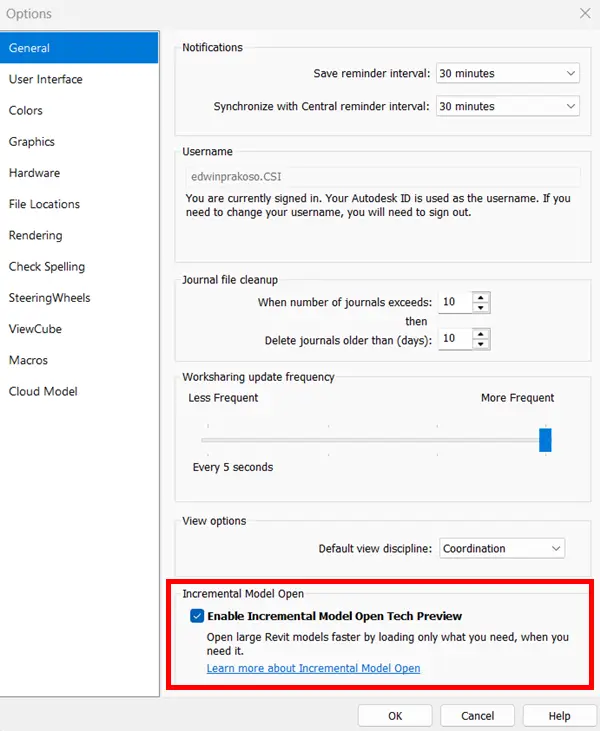
Alternatively, edit Revit.ini and add the following line under the [Misc] section:
IncrementalOpenDynamic=1Back up Revit.ini before editing it. The change takes effect the next time Revit starts, so close and restart the application if it is already running. Once enabled, models are opened with Incremental Model Open as usual.
Choose the starting view with care
The starting view determines which data Revit processes first, so it influences how quickly the model becomes available. A lightweight view, such as a simple drafting view or project information sheet, may need less data than a complex project view. Set the starting view under Manage > Starting View if a leaner opening view suits the team’s workflow.
There’s a trade-off: a quick initial display doesn’t mean every view will be ready immediately. Opening a different view may take longer while Revit processes data that was skipped at startup. Teams should judge the feature by how well that timing fits their actual work, including the views they commonly open and any linked-model constraints.
Incremental Model Open shifts processing from the start of a session to the point where more model data is needed. For large models, the useful gain is a potentially quicker first view and lower startup memory demand; the next thing to watch is how deferred processing affects the views users open afterward.