llama.cpp on a 2 GB Raspberry Pi 5: Speed, Memory and Reasoning Tests
- Published
- Author
- peppe8o
- Reads
- 724
A 2 GB Pi 5 ran a 1.7B GGUF model at 9 tokens/s, but reasoning time and tight memory shape what it can do.
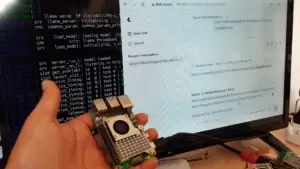
A Raspberry Pi 5 with 2 GB of RAM can run a small language model locally using llama.cpp, with no compilation step. In tests on a Pi 5 Model B, LiquidAI’s 1.7B LFM3 model, quantised as Q4_K_M, generated text at about 9 tokens per second. The catch is the memory budget: the model and runtime together used as much as 1.76 GiB, leaving little headroom for other demanding processes.
Response time also depends on how the model is asked to answer. LFM3’s default reasoning phase can add hundreds of generated tokens before a short reply. For one-sentence responses in these tests, disabling reasoning reduced elapsed time from 19–32 seconds to about 1.5 seconds. That makes reasoning settings, prompt length and cooling central to getting useful results from this compact setup.
Test setup and headline results
The measurements were made on a Raspberry Pi 5 Model B Rev 1.0 with 2 GB of RAM, an active fan, the manufacturer’s power supply and a microSD card. The system ran 64-bit Raspberry Pi OS Lite, based on Debian GNU/Linux 13 (Trixie), with kernel 6.18.50+rpt-rpi-2712. The software was llama.cpp build b12375, commit 9d25e0014, installed for Linux aarch64 and running on the CPU.
The model file, LFM3-1.7B-Q4_K_M.gguf, occupies 1,099,627,808 bytes: about 1.10 GB, or 1.02 GiB. It was fetched from LiquidAI’s Hugging Face repository. The main results were:
- Installation: 7.7 seconds, about 35 MB of disk space.
- Model download: 1 minute 14 seconds at about 14.7 MB/s on the test connection.
- Model loading: about 14–21 seconds, varying with disk cache.
- Prompt processing: 61.89 ± 1.67 tokens/s for a 512-token benchmark prompt.
- Text generation: 9.10 ± 0.01 tokens/s for a 128-token benchmark completion.
- Peak memory: 1.71–1.76 GiB across the reported runs.
- Peak CPU temperature: 60.4 °C during the four-thread benchmark, with no recorded throttling.
The prompt-processing and generation figures came from llama bench, run five times with four threads. Other measurements were generally single runs, using /usr/bin/time -v for elapsed time and peak resident memory. The author used vcgencmd to monitor temperature, throttling status and CPU frequency. Server requests came from another computer on the same local network.

Install the runtime and fetch a model
The installer used in the test downloads a prebuilt binary, so the Pi does not need to compile llama.cpp. Run:
curl -LsSf https://llama.app/install.sh | shThe script detects the system architecture and places the files in the user’s home directory, including ~/.llama-app and ~/.local/bin/llama. It probes CUDA, ROCm and Vulkan before selecting a backend. On the tested Pi 5, it chose the CPU backend and detected the Cortex-A76 cores’ fp16 and dotprod features. A ROCm download failure appeared in the installer output but did not prevent the CPU installation.
The installation took 7.7 seconds, used about 17 MB of RAM at its peak and added around 35 MB to disk. If the shell can’t find llama after installation, add ~/.local/bin to the path and reload the shell configuration. For bash, the tested commands were:
echo 'export PATH="$HOME/.local/bin:$PATH"' >> ~/.bash_profile
source ~/.bash_profile
llama version
The reported build was 1.0.0-dev, build 12375, compiled with Clang 22.1.8 for Linux aarch64. To fetch the quantised model and start a terminal chat, use:

llama download -hf LiquidAI/LFM3-1.7B-GGUF:Q4_K_M
llama cli -hf LiquidAI/LFM3-1.7B-GGUF:Q4_K_M
The built-in downloader accepts models in GGUF format. In the test, the 1.10 GB file took 1 minute 14 seconds to download, used about 8 MB of RAM during the transfer and was stored under ~/.cache/huggingface/hub/. The cache can be inspected with llama cli --cache-list.
The terminal chat supports /exit or Ctrl+C to quit, /regen to generate another version of the last response, and /clear to clear the conversation. The /read <file> command adds a text file, while /glob <pattern> can add a group of files.
What the benchmarks measure
For repeatable performance numbers, the test used 512 prompt tokens, 128 generated tokens, five repetitions and four threads:
llama bench \
  -hf LiquidAI/LFM3-1.7B-GGUF:Q4_K_M \
  -p 512 -n 128 -r 5 -t 4
The benchmark took 2 minutes 18 seconds and reached about 1.74 GiB of peak RAM. It measured prompt processing at 61.89 ± 1.67 tokens/s and generation at 9.10 ± 0.01 tokens/s. These are different phases: prompt processing covers reading and evaluating the input, while generation measures producing the response. The Pi handled the benchmark on its CPU; llama cli --list-devices reported (none), meaning no GPU or other accelerator was in use.

A first short chat asking “what is quantum computing?” reported 32.0 tokens/s for prompt processing and 8.9 tokens/s for generation. Its peak memory was 1,810,048 KB, about 1.73 GiB. The prompt was short and the measurement was a single run, so it shouldn’t be treated as a direct repeat of the five-run benchmark.
The model produced a reasoning phase bracketed by [Start thinking] and [End thinking] before its final answer. The response was structured, but the test’s assessment was that a 1.7B model on this hardware suits experimentation and simple tasks, with factual claims checked independently.
Cooling under sustained CPU load
During the benchmark, temperature, clock frequency and throttling status were logged every two seconds from a second terminal. The Pi started at 40.0 °C and peaked at 60.4 °C, then stayed around 56–58 °C under load. Two minutes after the benchmark ended, it was at 47.7 °C.
The CPU ran at 2.4 GHz under load and 1.5 GHz at idle with the default ondemand governor. The throttling report remained 0x0, with no recorded throttling or undervoltage. These results came from a setup with an active fan and the manufacturer’s power supply. Fanless operation wasn’t tested, so the measured temperatures don’t establish what an uncooled board would reach.

Serving the model over a local network
The same executable can provide an HTTP API compatible with OpenAI-style chat requests and a browser interface. To make it reachable from other devices on the network, the test started the server on all interfaces at port 8080:
llama serve -hf LiquidAI/LFM3-1.7B-GGUF:Q4_K_M --host 0.0.0.0 --port 8080With this configuration, the server warned that it had no API key and allowed requests from all origins. Any device on the local network could send requests without authentication. The test notes that this may suit a trusted home network, but the port should not be exposed to the internet in this configuration.
Once the server reports that it is listening, a client on the same network can send a chat request. Replace the placeholder with the Pi’s network address:
curl -s http://<raspberry-pi-ip>:8080/v1/chat/completions \
  -H "Content-Type: application/json" \
  -d '{"messages":[{"role":"user","content":"Say hello in one sentence."}],"max_tokens":400}'
Server measurements showed a model-loading time of about 14–21 seconds, peak process memory of 1.71–1.76 GiB, and generation near 9 tokens/s. Communication across the local network added about 0.04–0.15 seconds. The browser interface is available at http://<raspberry-pi-ip>:8080.

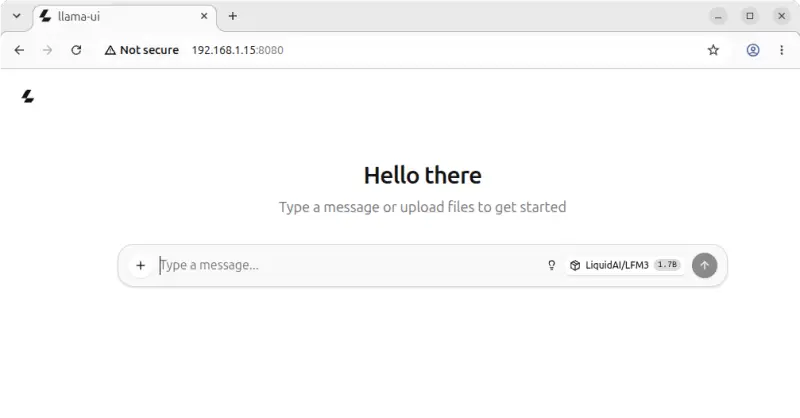
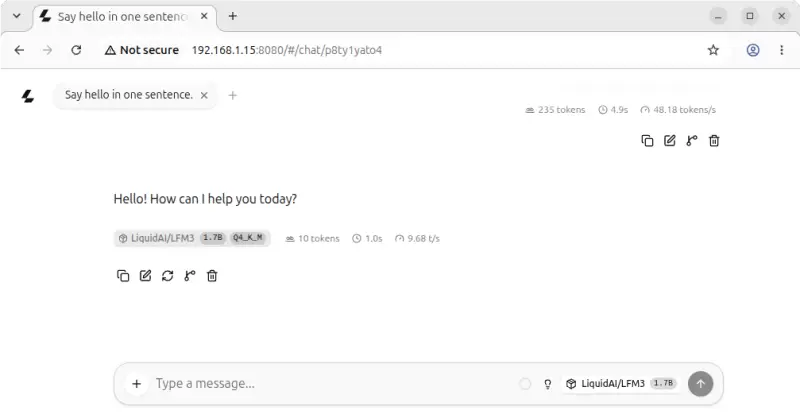
The browser interface took almost six seconds to produce a 10-token answer in one test. Its prompt contained 235 tokens, compared with 17 tokens for the same user text sent directly through the API. Prompt processing alone took 4.9 seconds at 48 tokens/s, accounting for much of the delay. File attachments in the interface work only when the selected model supports the relevant file input.
Reasoning can dominate response time
On this Pi, generating a token takes roughly 110 milliseconds. A model that emits a long reasoning trace before its final response can therefore turn a short exchange into a long wait, even when its generation rate remains steady.
For the request “Say hello in one sentence,” the default reasoning mode generated 285 tokens in 32.1 seconds in one run and 175 tokens in 19.4 seconds in another. A reasoning budget of 64 produced 82 tokens in 9.7 seconds. With reasoning disabled, the run produced 10 tokens in 1.5 seconds. Generation stayed near 9.1 tokens/s; the elapsed-time difference came mainly from how many tokens the model produced.
Reasoning can be disabled for the server with:

llama serve -hf LiquidAI/LFM3-1.7B-GGUF:Q4_K_M --host 0.0.0.0 --port 8080 --reasoning offTo cap the reasoning budget instead, use:
llama serve -hf LiquidAI/LFM3-1.7B-GGUF:Q4_K_M --host 0.0.0.0 --port 8080 --reasoning-budget 64The timings are examples rather than guarantees: the same question produced different amounts of reasoning on separate runs. Disabling reasoning can also change the answer. In this sample, the reasoning-enabled model returned one sentence as requested, while the disabled version replied with two short sentences. Repeat comparisons if response quality or timing needs to be assessed consistently.
llama.cpp also offers --reasoning-effort and an OpenAI-style reasoning_effort request field, with values such as minimal, low, medium and high. In these LFM3 tests, neither setting showed a consistent effect. The request field produced 331 tokens at low and 184 at high. With the server set to minimal, three runs produced 400 tokens (the configured limit), 383 and 304; the default runs produced 175 and 285.
A discussion in the llama.cpp GitHub repository, discussion #20408, describes reasoning effort as a capability that models need to be trained to use. A user there reports that clients can send the field to models that don’t support it and receive no visible effect. The test didn’t verify how LFM3’s chat template handles the setting, so the practical finding is limited to this model and configuration: use --reasoning off or --reasoning-budget to control output length.

Context length, prompt time and memory
Context includes the prompt, any supplied text and the conversation so far. Longer inputs take time to process, and the context setting also determines how much text the server can handle. In this test, the default server configuration started four slots with a context of 54,528 tokens per slot. The llama fit-params command suggested -c 41728 -ngl -1 for the model and 2 GB board.
To compare prompt lengths with a smaller context, the server was run with one slot and a context of 4096 tokens. A 17-token prompt was compared with a 3,022-token prompt, created by repeating a sentence 300 times before asking for a summary:
llama serve -hf LiquidAI/LFM3-1.7B-GGUF:Q4_K_M --host 0.0.0.0 --port 8080 --reasoning off -c 4096 -np 1- Short prompt, 17 tokens: processing at 38.2 tokens/s, generation at 8.97 tokens/s, peak memory 1.73 GiB.
- Long prompt, 3,022 tokens: processing at 61.3 tokens/s, generation at 6.80 tokens/s, peak memory 1.71 GiB.
The long prompt took 49.3 seconds to process before generation began. Its generation rate was lower than the short-prompt run, though each result came from a single measurement. Peak memory stayed in a similar range for both inputs. Likewise, reducing the server to a 4096-token context and one slot did not visibly cut memory use: the reported peak was 1.73 GiB, compared with 1.75 GiB under default settings.
Hardware and operating system choices
The test used Raspberry Pi OS Lite, 64-bit, to leave more system resources available to the model. A desktop installation can also run the software from a terminal, but the measurements here came from the headless Lite system. The operating system was updated before installation with:
sudo apt update -y && sudo apt upgrade -yThe board needs storage for both the system and model files. The tested microSD card was A1 class; the recommendation in the test is at least a 32 GB card and class 10 or better. The Pi 5 can also use an NVMe SSD through an M.2 HAT, which may improve storage performance, though no NVMe comparison was measured.
A suitable power supply and active cooling are sensible parts of this workload setup. The test used an active fan and saw no throttling during its four-thread benchmark. It did not compare cooling hardware or storage devices, so those results shouldn’t be read as a performance ranking.
Other commands and common errors
llama help all lists the available tools. Besides cli for interactive terminal chat and serve for the API and browser interface, the tested build provides download, completion, bench, batched-bench, fit-params, quantize and perplexity. The version and licenses commands report build details and third-party licences. The test did not run llama update, keeping build b12375 unchanged throughout.
If a model repository contains no GGUF files, the downloader reports that no GGUF files were found. In that case, look for a GGUF version of the model. Some repositories restrict downloads to authenticated users; the reported procedure is to create a Hugging Face token and supply it with --hf-token when running llama download.
A separate test on a Raspberry Pi 5B with 8 GB of RAM and Ubuntu Desktop detected Vulkan, then failed at runtime with ggml_vulkan: Error: Shared memory size too small for matrix multiplication. The reported workaround was to hide the Vulkan device for that invocation:
GGML_VK_VISIBLE_DEVICES="" llama cli -hf LiquidAI/LFM3-1.7B-GGUF:Q4_K_M
# or
GGML_VK_VISIBLE_DEVICES="" llama serve -hf LiquidAI/LFM3-1.7B-GGUF:Q4_K_M --host 0.0.0.0 --port 8080
Practical limits
The 2 GB Pi 5 is capable of running this 1.7B model locally, but its memory margin is narrow. Peak use reached 1.76 GiB, so there’s little room for other memory-intensive services. The CPU’s generation rate of about 9 tokens/s is workable for short exchanges, while long prompts and extended reasoning can make a response take tens of seconds.
For a small local assistant, the clearest speed adjustment is controlling reasoning output. Keep prompts focused when fast turnaround matters, use active cooling for sustained inference and treat factual answers from a small model as claims to verify. The benchmark shows what this specific board, build and quantisation achieved; different models, settings, storage and system loads can produce different results.